🔍 Does your screen sprawl like this?
As long as you run just one Claude Code, nothing goes wrong.
Things change once you start a second. You give one an instruction, work on the other while you wait, come back, and the first one finished ages ago. Add a third and a fourth, and now you find yourself opening each window in turn just to hunt for the one that is waiting for a reply.
Kochab Grid is a Windows desktop app built to stop that back-and-forth. It lays multiple Claude Code sessions out on one screen, shows their status in color, and notifies you when one is waiting for a reply. That is all it does.
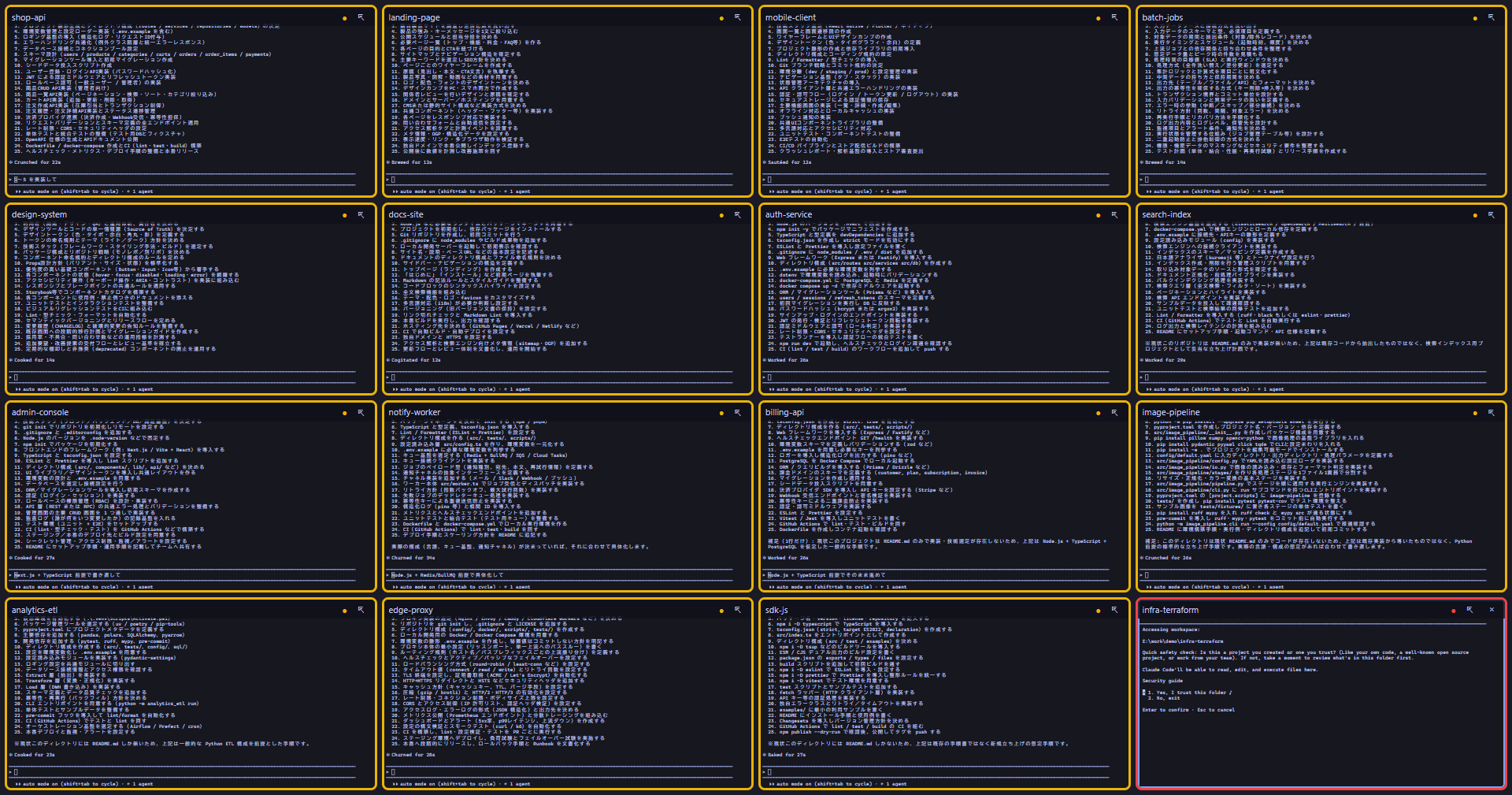
The full 16-pane grid. One screen tracks the status and output of every session (the screen shows a dummy demo project).
The original idea really was just that: “wouldn’t it be handy to see four Claude Codes at once?”
🪟 Three windows, each with its own job
Kochab Grid is made up of three kinds of window.
| Window | Role |
|---|---|
| Control | The command center. Project list, new-session creation, the command / Skill bars, browsing and searching journals, settings. |
| Grid | The monitor board. Shows running sessions shrunk into up to 16 panes, color-coded by status, and you can type into them directly. |
| Expanded | The workspace. Opens one session in its own window. It shares the same terminal as the grid. |
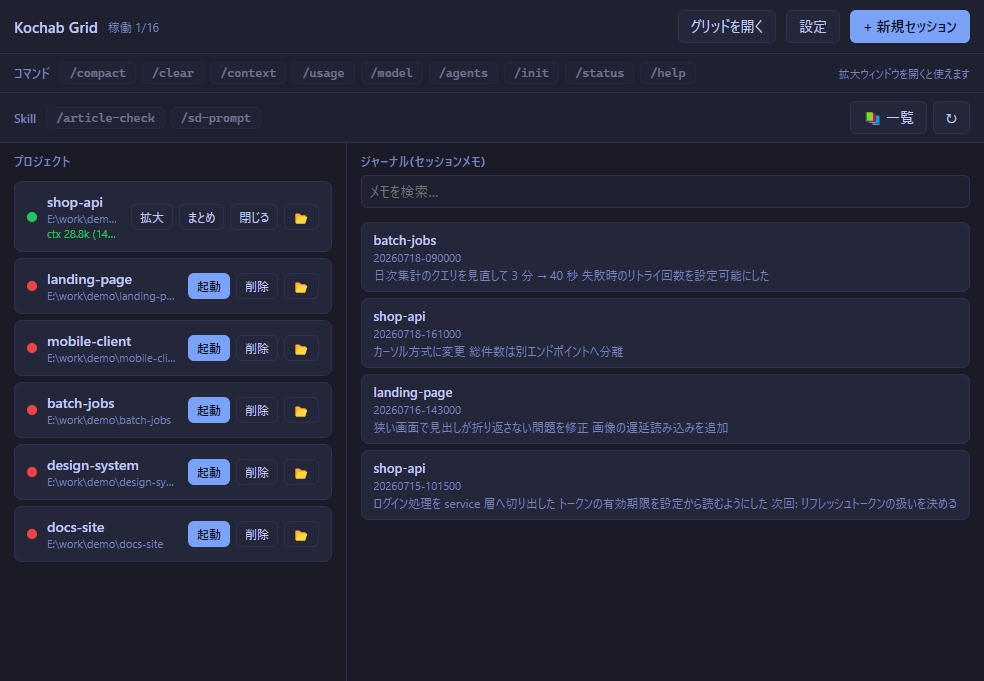
The Control window. The project list is on the left, the journal (work notes) search and browser on the right.
The key point is that the grid and the expanded window share the same terminal. They are not reconnecting separately, so characters you type in the grid appear on the expanded side too, and work you do in the expanded window is reflected back in the grid. “Where you look” and “where you type” are not split apart, so you never have to switch gears.
Why they can share the same screen
When you start a session, PowerShell launches with your chosen directory as its working directory, and claude runs inside it. This terminal (a PTY, a pseudo-terminal) is owned by exactly one process: the app’s main process. Every session’s PTY, the ring buffer that holds its output, and the status judgment are all managed there in one place.
The Control, Grid and Expanded windows are just independent views. They do not hold a PTY directly; they talk to the main process over IPC.
- Output — the main process takes the output it receives from the PTY and distributes it to each window.
- Input — a window sends it to the main process, which writes it to the right PTY.
- Status — the main process decides it and broadcasts it to every window at once.
So a small grid pane and an expanded window are both just peering at the same single PTY from different places. Because there is only one owner, there is nothing to get out of sync.
When you open a new expanded window, it replays the contents of the ring buffer to rebuild the current screen. That is why, even if you open it partway through, it shows up with the earlier output already scrolled in.
A grid pane accepts input as soon as you click it. For a quick reply (typing y, pressing Enter) there is no need to expand at all. When you want to read carefully, a double-click or the ⇱ button opens the expanded window.
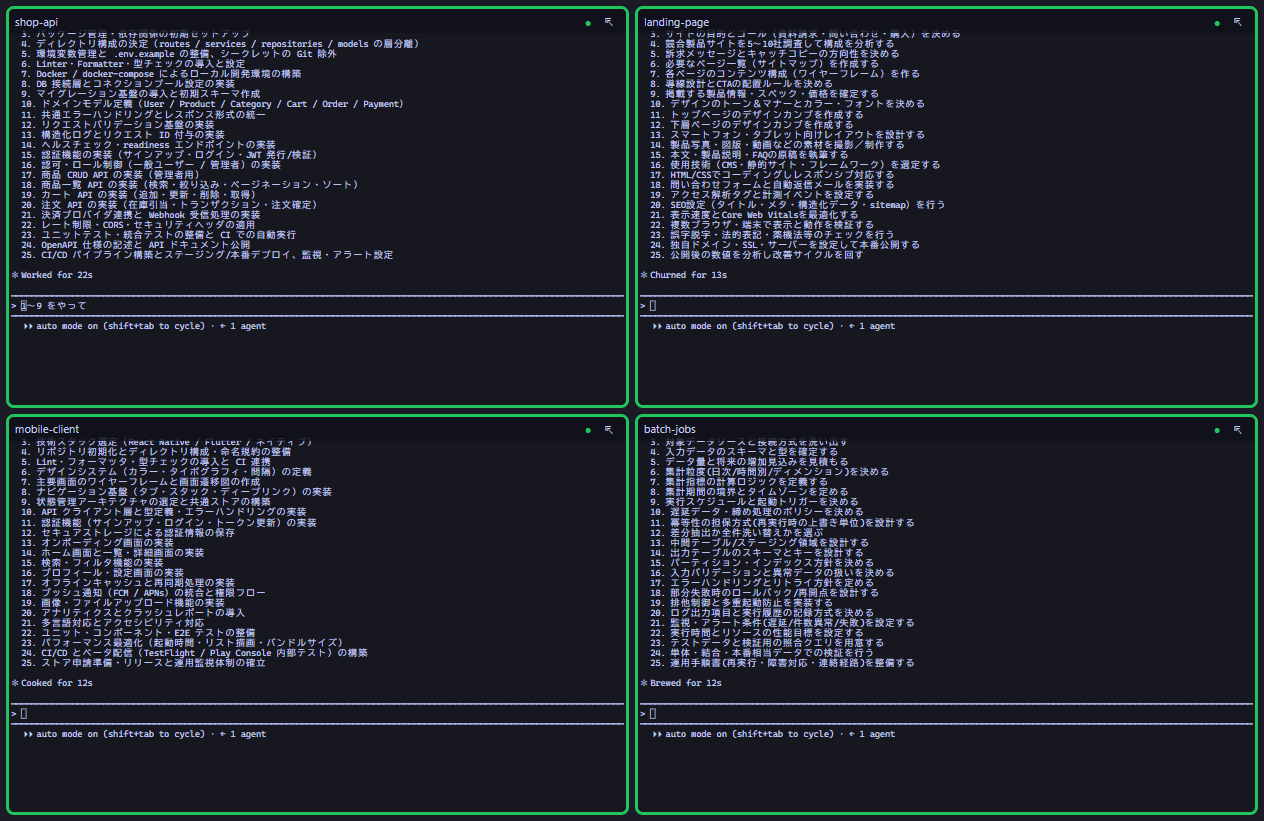
A four-pane layout. A pane accepts input as soon as you click it.
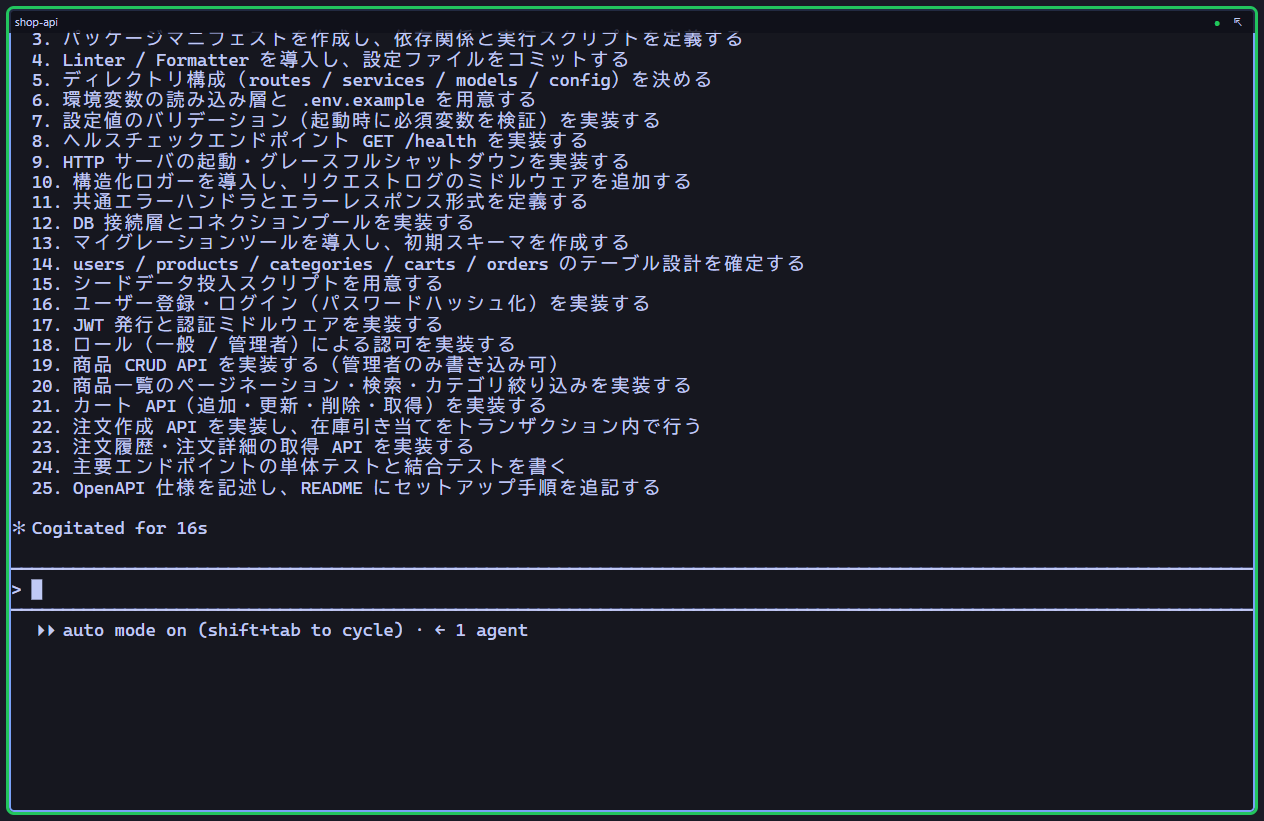
Expanded. The same content as the small grid pane, shown at the same column width.
Sending from Control — the command bar and Skill Library
At the top of the Control window is a command bar that sends /compact, /clear, /context, /usage, /model, /agents, /init, /status and /help with a single click. Hover over a button and a tooltip tells you what that command does.
The destination is the session in the active (last-focused) expanded window. When no expanded window is open, the buttons are disabled and the right edge shows “where this would be sent.” It is built so you cannot fire it off by mistake.
Below that is the Skill Library. It reads ~/.claude/skills and the .claude/skills of the active session’s project, and lays the skills out as buttons. Click one and it sends /<skill-name>. From “📚 List” you can preview a SKILL.md or open its folder.
This part is read-only. Kochab Grid never rewrites a skill itself. Skills are an asset shared with Claude Code proper, so the design treats the canonical copy as always living in Claude’s standard directory.
It reads both <name>/SKILL.md (directory form) and <name>.md (flat form). It indexes the name: and description: from the frontmatter, and the description shows up in the button’s tooltip.
🚦 Status you can read by color, “waiting” you notice by notification
Each pane has a colored border.
| Color | Status | Condition |
|---|---|---|
| Green | Working | The terminal produced output within the last N seconds. |
| Yellow | Waiting | Output has been idle for N seconds or more (the process is alive). |
| Red | Stopped / error | The terminal’s process has exited. |
N defaults to 60 seconds and can be changed in the settings.
Let me be honest here. There is no way to read Claude Code’s internal state from outside. So Kochab Grid infers the status from “when output was last seen” and “whether the process is alive.” When a task produces no output for a long time, it can end up showing “waiting.”
If you cannot read it precisely, settle for whatever precision you can get and add a way to notice instead. The moment a session changes from working to waiting, a desktop notification appears, and clicking it brings that session’s screen to the front. Repeat notifications are suppressed so it does not ring constantly, and you can turn notifications off entirely in the settings.
The cards also show per-session tokens. ctx is the conversation’s context length, out the cumulative output tokens. Both are tallied by reading the transcript Claude Code writes out, so they appear only after you have sent the first message in that session.
🈶 A plain but important requirement: tables that don’t break
When you use Claude Code in Japanese, tables and ruled lines can break up and become unreadable. The cause is a mismatch in how character width is interpreted. The terminal thinks a character is one column wide while Claude counts it as two and draws its rules accordingly. A single character of drift throws off every vertical line after it.
xterm.js defaults to the Unicode 6 character-width definitions, and its handling of full-width characters does not match Claude’s column arithmetic. Kochab Grid adds @xterm/addon-unicode11 to align the width interpretation to Unicode 11. That gets the counting itself in step first.
It shrinks the look, not the column count
The other problem is how to fit that terminal into a 16-pane grid.
The naive approach is to reduce the column count as the pane gets smaller. But the moment you do that, the position of the ruled lines changes too. It would also mean the same output looks different in a small grid pane versus the expanded window.
Kochab Grid does the opposite. Every PTY is handled at a fixed 120×30, every pane’s xterm is drawn at that same 120×30, and then CSS transform: scale() shrinks it to fit the pane. The column count never changes anywhere; the only thing being changed is the display scale.
So in both a tiny 16th-of-a-screen pane and the expanded window, the vertical lines of a table line up in the same places. The text in a small pane is of course unreadable, but that is fine. The grid is not a screen for reading; it is a screen for seeing whether things are moving.
💾 It carries on after you close it — auto-resume and work notes
When you quit the app normally, the sessions running at that moment are recorded. On the next launch, they are restored one by one with claude --resume (you can turn this off in the settings).
The session-id that resume builds on is captured by matching up the session information and transcript that Claude Code writes out. There is an implementation quirk here: Claude Code creates the session information and transcript not right at launch, but only after the first user message. So the id cannot be captured with a single check; it works by periodically matching against the working directory and picking it up. The resume pointer, too, is saved only when the transcript actually exists — to avoid “I tried to restore and the conversation wasn’t found.”
If you launch Kochab Grid from a Claude Code shell, environment variables like CLAUDECODE and CLAUDE_CODE_SESSION_ID get inherited. Pass those straight through to the child claude and it is judged to be a nested child session, and no session information or transcript is kept at all. No record means no foundation for resume, either. So before launching the PTY, these environment variables are dropped.
The other feature is the journal (work notes). Automatically at session end, or at any time via the “Note” button on a card, you can save what you have done up to that point. There are two methods.
| Method | What it does |
|---|---|
| Simple | Saves the tail of the recent log as-is. Light and reliable. |
| Summarized | Passes the transcript to a separate claude -p process and has it summarize “what I did / current state / what’s next.” |
Saved notes can be searched and browsed from the right side of Control. Handy for remembering what you were doing a week ago.
What gets saved where
| Purpose | Path |
|---|---|
| App state (project list, grid layout, settings) | %USERPROFILE%\.kochab-grid\state.json |
| Journal (work notes) | %USERPROFILE%\.kochab-grid\journal\<project-id>\*.md |
| (read-only) Claude’s transcript | ~/.claude/projects/<encoded cwd>/<session-id>.jsonl |
| (read-only) Claude’s running-session info | ~/.claude/sessions/<pid>.json |
The bottom two are Claude Code’s own assets, and Kochab Grid only reads them. It never rewrites them.
The “encoded cwd” is the working directory’s path with every non-alphanumeric character replaced by -. Case is preserved, and each Japanese character becomes a single -.
C:\Users\user\OneDrive\ドキュメント\Arduino
→ C--Users-user-OneDrive--------Arduino
It can trace a transcript back from the working directory because it knows this rule.
🛡️ Two safety limits are built in
1. While the folder-trust prompt is showing, auto-send is halted
The first time you open a folder, Claude Code asks “Is this a project you created or one you trust?” The default choice is “1. Yes, I trust this folder.” Send to it from the command bar or Skill bar here, and the trailing Enter confirms “trust it.” The folder becomes trusted without the user having looked at anything.
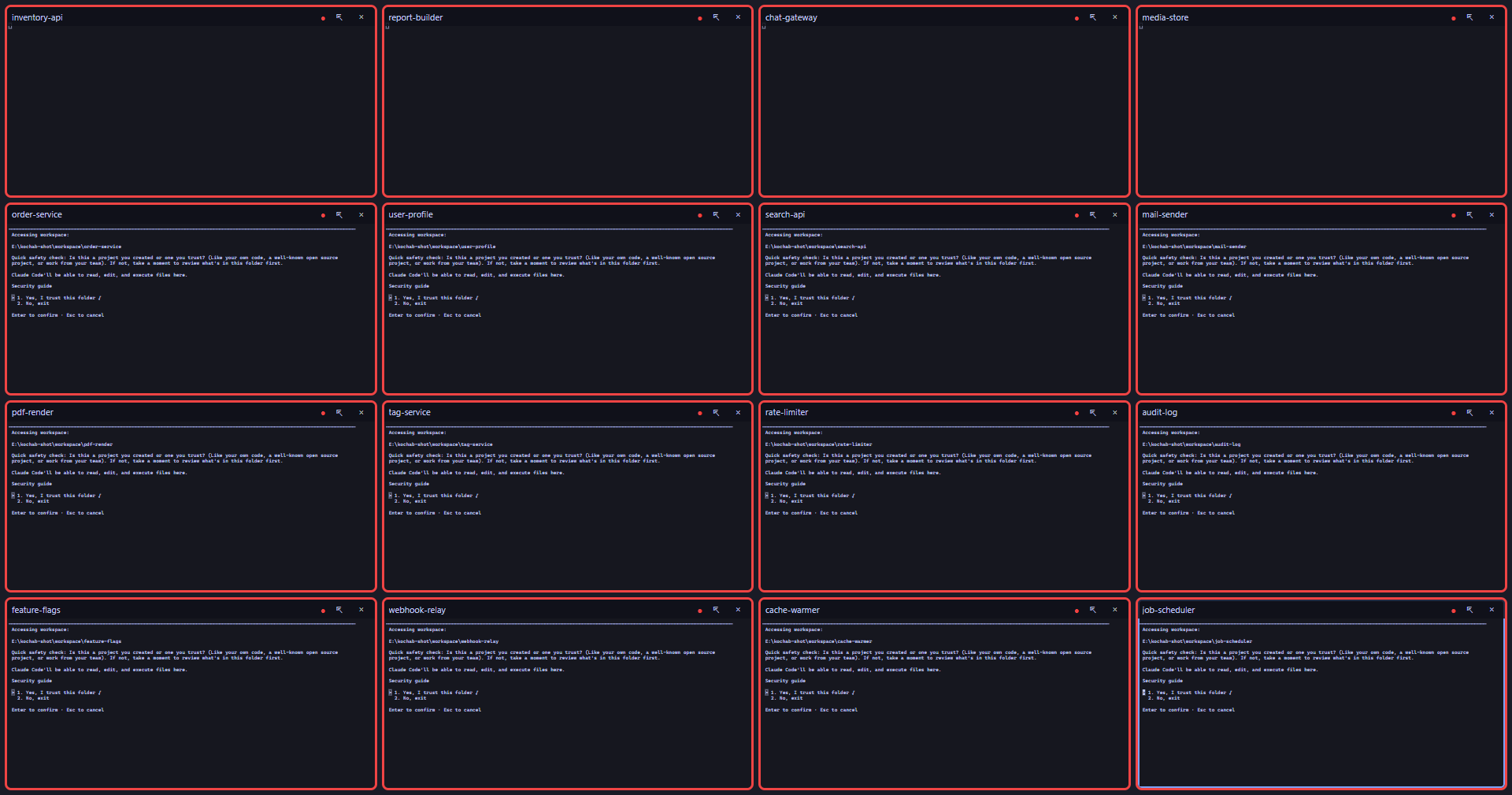
This is the trust prompt. The default choice is ‘1. Yes, I trust this folder’, so an Enter landing here marks the folder as trusted.
So while this prompt is up, only auto-send is halted, and the reason is shown in Control. It never gets in the way of your own keystrokes. Check the content in the expanded window and choose for yourself.
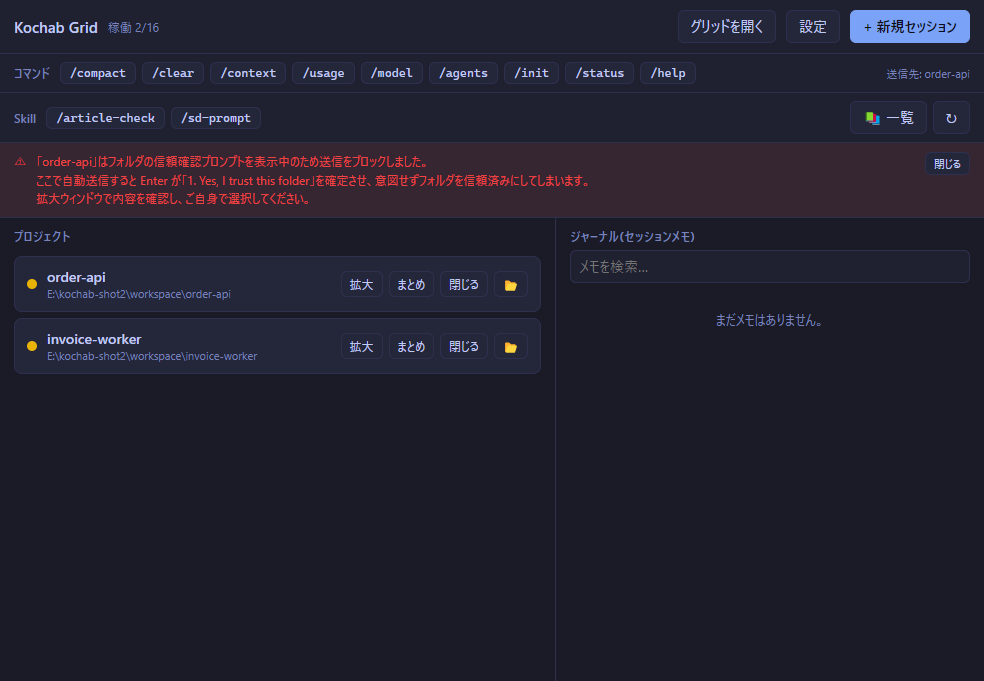
Trying to send /status from the command bar. The send is halted, and the reason it was halted is shown as-is.
Halting is paired with putting the reason right there on the spot. If you cannot tell that something was blocked, you end up puzzling over “I sent it, but nothing happened.”
Whether a trust prompt is showing is judged from the wording that appears in claude’s TUI. In other words, if Claude Code’s display changes, the detection may stop working. If behavior seems different after an update, suspect this first.
One more thing: sends made right after launch had a problem where the instruction vanished silently. An instruction sent 0.8 seconds after launch was lost, while one sent at 1.3 seconds was accepted. Now, only right after launch, a send is queued briefly and flushed after a short wait. Sends to an already-established session are not delayed.
2. You can’t start two sessions on the same directory
A project is registered as “one directory = one entry.” Run two on the same folder and they fight over the name, grid position and auto-resume settings and break. The second one is refused with a reason shown. Close the existing session first, then launch.
📦 Installing and launching
The prerequisites are Windows 10 / 11 (64-bit) and that the claude command resolves on your PATH — in other words, that Claude Code is already installed. You do not need to install Node.js; it is bundled with the app.
There are two distribution formats.
| File | Use |
|---|---|
kochab-grid-0.1.0-x64-setup.exe |
The normal installer. Registers in the Start menu (about 86 MB). |
kochab-grid-0.1.0-x64-portable.exe |
No install needed. Unpacks to a temporary location and launches (about 86 MB). |
The contents are identical. For your first time, the installer version is recommended. The installer version is a per-user install; it does not ask for administrator rights (UAC elevation). It writes nothing to the system area, and you uninstall it from Windows’ “Settings → Apps → Installed apps.”
Download it from the GitHub releases page. This is the only official source. Anything hosted on another site was not put there by the author.
Kochab Grid — releases page (the latest version as of writing is v0.1.0)
SHA256SUMS.txt is on that same page. You use it for the hash check below.
A warning appears on first launch
There is no code-signing certificate. The only reason is that an individual giving away a free tool has not spent money on one. So on first launch you get the blue “Windows protected your PC” screen. You can launch it via “More info” → “Run anyway.” Once you choose to run, it will not appear again for that file.
On the browser side too, Chrome / Edge may say “isn’t commonly downloaded.” Choose “Keep” or “Continue” from the download list.
On a machine freshly clean-installed with Windows 11, Smart App Control may be enabled. While it is on, unsigned apps cannot launch even via “More info → Run anyway.”
You can check its state under Settings → Privacy & security → Windows Security → App & browser control → Smart App Control.
Once Smart App Control is turned off, it cannot be re-enabled without reinstalling Windows. Weigh that security trade-off before deciding. If you do not want to turn it off, you cannot use Kochab Grid on that machine. There is no workaround.
Having no signature also means that the only way to confirm your file has not been tampered with is a hash check. It is not an optional extra; it is the one and only way to verify authenticity.
SHA256SUMS.txt on the releases page lists the SHA256 hashes of the distributed files. Run the following in PowerShell and confirm it matches the published value.
Get-FileHash .\<downloaded-file>.exe -Algorithm SHA256
If it does not match, do not run it — discard it and download again from the releases page.
⚠️ What it can’t do — known limitations
- Windows only. macOS / WSL are not supported.
- Status detection is a time-based guess (as above). It can misjudge a task that produces no output for a long time as “waiting.”
- If the resume history has expired on Claude’s side,
--resumecan fail. The “pseudo-resume” that would feed the notes back in as context when that happens is not implemented. - The expanded window’s size is fixed (a scaled display). It does not become a normal terminal with a variable column count.
- The grid’s Esc-to-unfocus and Control’s project search are not implemented (search is journal-only).
- When sessions fill up to 16/16, the flow to pick and close an unneeded session before creating a new one is not implemented (only an error is shown).
- Detection of the trust prompt depends on
claude’s on-screen display, as noted above.
It is not a tool to make Claude Code smarter. It is a board for people already running several sessions, so they don’t lose track of which one is waiting for a reply. If you only ever run one, you probably don’t need it.
📄 License and disclaimer
Kochab Grid is freeware. It is not open source; it is covered by its own license agreement, the “Kochab Grid License Agreement.” Here are just the key points.
What you may do
- Use it free of charge.
- Personal or commercial use, either way. Use in the work of a company or organization is permitted too.
- As long as it is a computer you yourself use, there is no limit on the number of installations.
What you may not do
- Redistribution, publishing, reposting, lending, mirror distribution, and bundling into other products are prohibited. This includes distribution within the same organization (placing it on an internal shared server, handing it to team members).
- Modification and reverse engineering are prohibited.
- No warranty. It is provided as-is, with no guarantee of fitness for a particular purpose, of being error-free, or of working properly alongside other software.
Let me give the reason for the redistribution ban. It is not about asserting rights forcefully. As noted above, because it is distributed without code signing, the only way for a user to confirm the authenticity of the file in their hands is a hash check. If the acquisition routes branch, that reference point itself becomes untrustworthy. The reasoning is that keeping the official acquisition route down to one is the realistic way to prevent tampered versions from circulating.
So if you introduce it to someone, please point them to the releases page rather than handing over the file itself.
Note that this app includes open-source software such as Electron, Chromium, node-pty, xterm.js and React. Each of those is governed by its own license, which takes precedence, and the redistribution and modification bans above do not extend to that third-party software. The main texts are bundled at the install location.
The above is just a summary. What actually applies is the agreement text itself, so read the full text in the repository’s LICENSE or in the LICENSE at the install location (the same directory as the exe).
This software is not affiliated with, sponsored by, or endorsed by Anthropic PBC. Claude and Claude Code are trademarks of Anthropic PBC.